
Confidently Navigate the Market
Featured Class: Market Area Statistics
Whether you are educating yourself or prepping for a buyer or listing appointment, this class will help you prepare for the tough questions. Learn to use a variety of tools (including FastStats, InfoSparks and Matrix) to pull stats and reports, each offering unique insights to support your strategy. Plus, by attending, you’ll earn 2 free CE credits while building the knowledge you can put to work right away.
From Listing to Lease, Made Simple
Manage Rental Listings with Confidence
REcolorado customers have access to RentSpree at no additional cost, making it easier to manage rental listings, applications, and tenant screening, all in one place. With built-in tools available directly in Matrix, you can streamline your workflow and move faster from listing to lease. For those looking for even more functionality, RentSpree also offers Pro features with expanded tools and added flexibility. We’ll be hosting an upcoming webinar to walk through how to get started and make the most of RentSpree.
Streamline Media from Start to Finish
Simplify Your Listing Media Workflow
Media Bridge simplifies how you get listing media into the MLS. Instead of downloading and re-uploading files, you can send or receive a single link with everything—photos, floor plans, and virtual tours. Upload it yourself or invite your photographer to send it, then review and publish it directly in Matrix in just a few clicks.
Matrix Minute: Tips to Work Smarter in Matrix
Helpful Matrix Reminders for Everyday Use
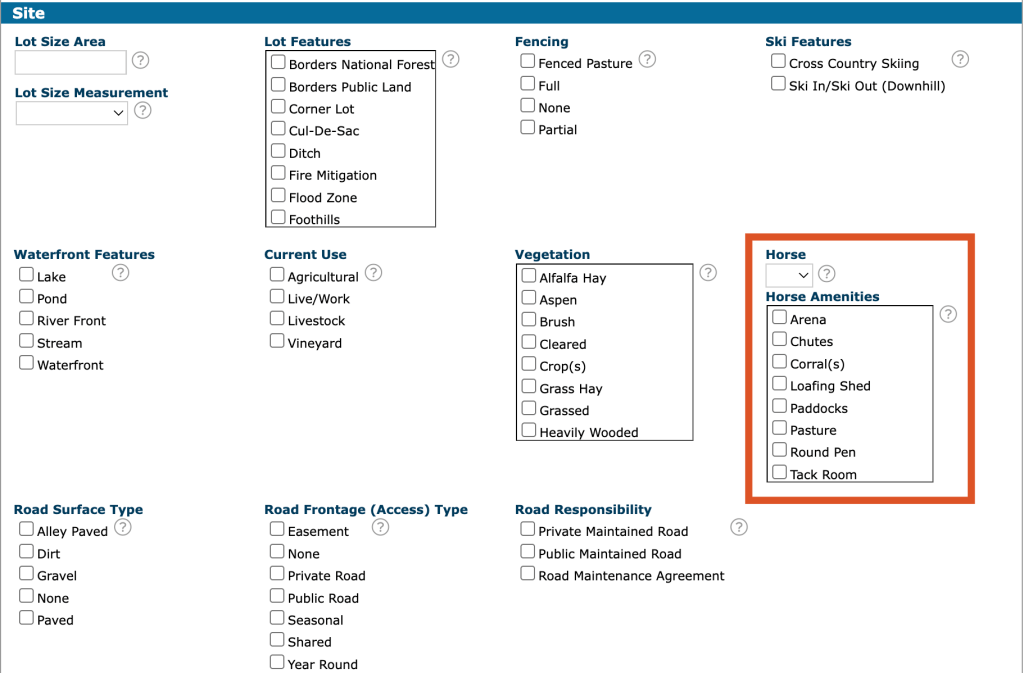
Looking for horse properties? Matrix makes it easy; but keep in mind, this field is optional and only searchable if added during listing input.
How to add horse details to a listing:
- When entering a listing, navigate to Building & Site.
Scroll down to the Site section, where you’ll find Horse options with multiple selections available.
How to search for horse properties:
- In Matrix, go to Search → Residential.
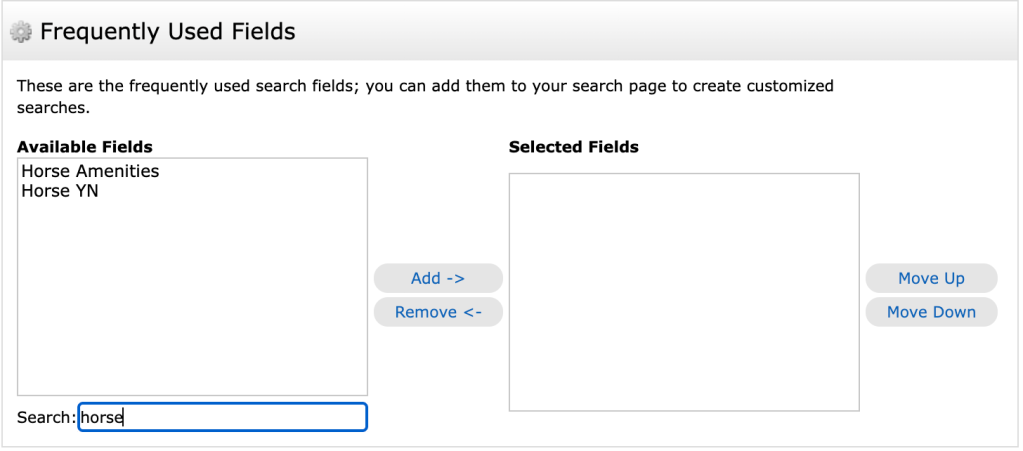
Scroll to Additional Fields and type “Horse.”
You’ll see two options: Horse Amenities or Horse Y/N. Select your criteria to refine your search.
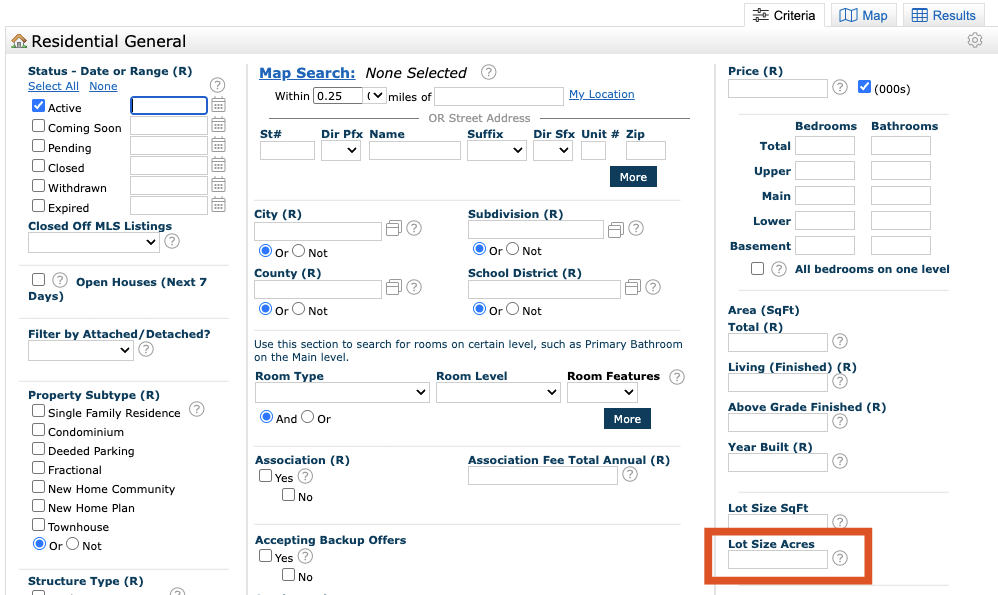
Looking for properties with more land? Use the Lot Area Acres field to narrow your search.
How to search by lot size:
- In Matrix, go to Search → Residential. In the main search fields, you’ll see a preset field labeled Lot Area Acres. Enter your desired range (for example: 1–5 acres) to filter results. This helps you quickly find listings that match the amount of land your clients are looking for—without searching listing by listing.
Look beyond the close price to the sale details for more insight when running a CMA. Check the Net Close Price on closed listings to see potential concessions.
How to find it:
- Open a Closed Listing in Matrix. Scroll all the way to the bottom of the listing. If applicable, you’ll see fields reflecting concessions

MLS Policy Essentials Video Series
For this week’s MLS Policy Essentials Video, here’s a quick refresher on Coming Soon listing guidelines. Learn more about Coming Soon listing guidelines by joining our class on April 20 at 10 a.m. and earn 2 free CE credits.